What happens on September 1
Most seating charts get built twice. Once in a spreadsheet, because that is where the guest list already lives, and once on paper or in a slide, because a spreadsheet cannot show you that Aunt Carol is sitting two chairs from her ex husband. Then someone cancels on the Thursday before the wedding and you redo both of them.
We built SeatPlanning so that stops happening. On September 1, 2026 it comes out of private beta and opens to everyone.
Everything described below is already running in the app today. We have kept the roadmap out of it, apart from one clearly labelled section near the end.
Want a look before the 1st? The free seating chart builder works with no account and no card.
Build the floor plan by dragging things around
The canvas is the part people actually spend their time in. You drop round or rectangular tables into the room, add seats around them, and drag guest names into chairs. Everything snaps, rotates and resizes.
Tables are not the only thing you can place. There are areas for the dance floor, the bar and the buffet. There are walls, text labels, icons, and images, so you can drop in the floor plan the venue emailed you and build directly on top of it. There is also a ruler, which sounds boring until the room you drew turns out to be four metres wider than the room you booked.
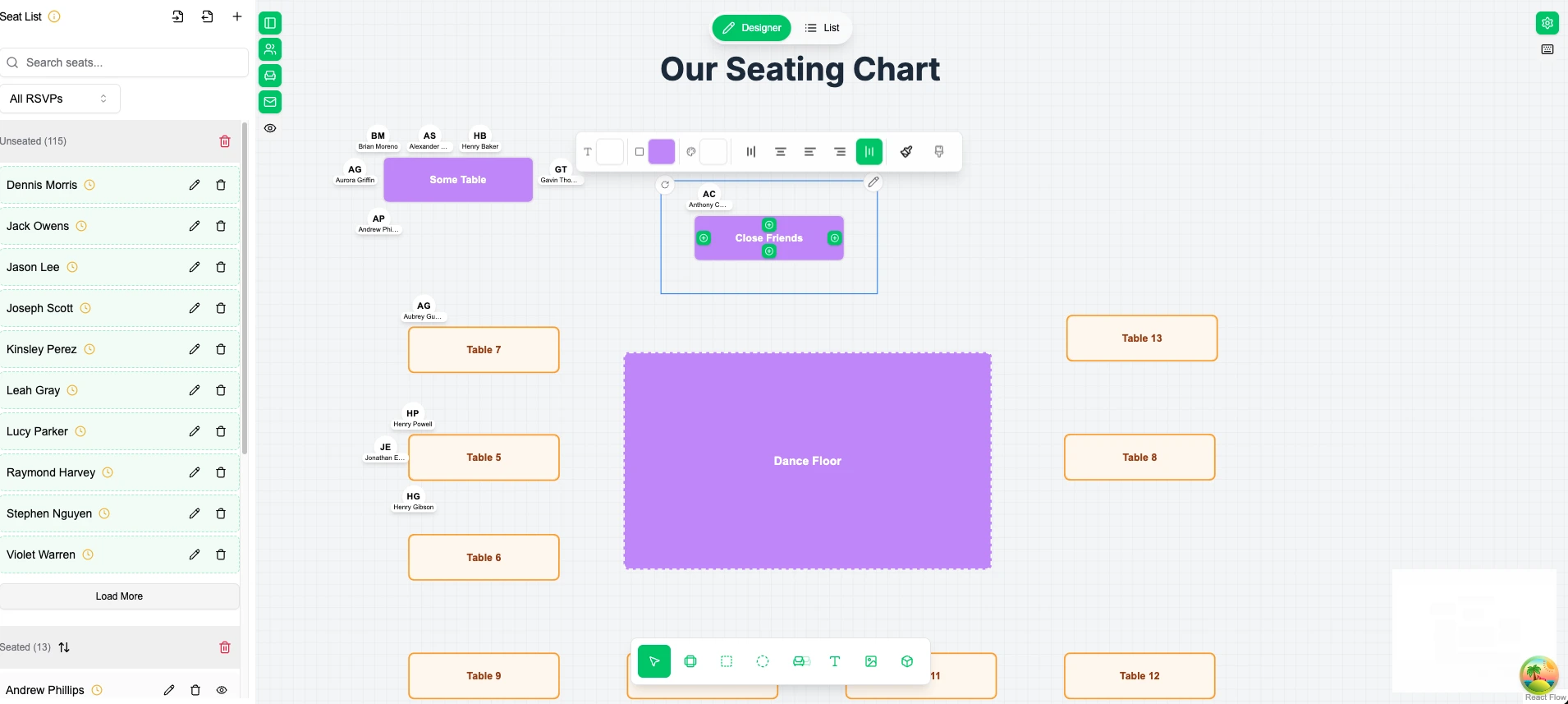
The SeatPlanning seating chart canvas showing numbered tables, a dance floor area and the unseated guest list in the sidebar
Two things here save the most time. Event templates give you a wedding reception, a wedding ceremony, a corporate layout or a birthday setup with the tables already placed. And automatic seat distribution spreads your whole seat list across the tables you have in one click, instead of you dragging 130 names one at a time.
Quick fix: if you are still arguing about how many tables to book, run the headcount through the table capacity calculator before you draw anything. It works out the table mix that leaves you with the fewest awkward empty chairs.
Draw the real room and see how many tables actually fit
Every planner eventually asks the same question, usually too late: does this actually fit? Rooms answers it. It arrives just ahead of September 1, so it is there on day one.
A room is a rectangle you draw at the venue's real wall to wall measurements, in metres or feet rather than in pixels. Once it exists you set the two clearances that decide everything about capacity: the aisle you keep from the walls, and the gap you leave between tables. The defaults are the usual banquet standards, 90 cm from the walls and 150 cm between tables, and you can widen them if your venue insists on more.
From there the room does the arithmetic for you, live on the canvas. It shows how much of the usable floor you have spent, how many more tables of your most common size will still fit, and how much floor is left. When you have overrun it says so, and it tells you which of the two reasons applies: either something is sitting outside the walls, or the tables plus their clearances simply need more floor than the room has.
Dragging a room carries everything inside it, which is how you discover in about four seconds that the head table cluster works better against the other wall. Hold Alt if you want to move only the outline.
The capacity calculator answers this question before you start drawing. Rooms answer it while you draw, against the layout you actually have.
Import your guest list from Excel
Your guest list is already in a spreadsheet, so bring it over rather than typing it again.
SeatPlanning reads .xlsx files. You pick the worksheet, then map your columns onto seat fields: first name, last name, email, phone. Anything that does not fit one of those becomes a custom field, either free text, a dropdown or a yes/no.
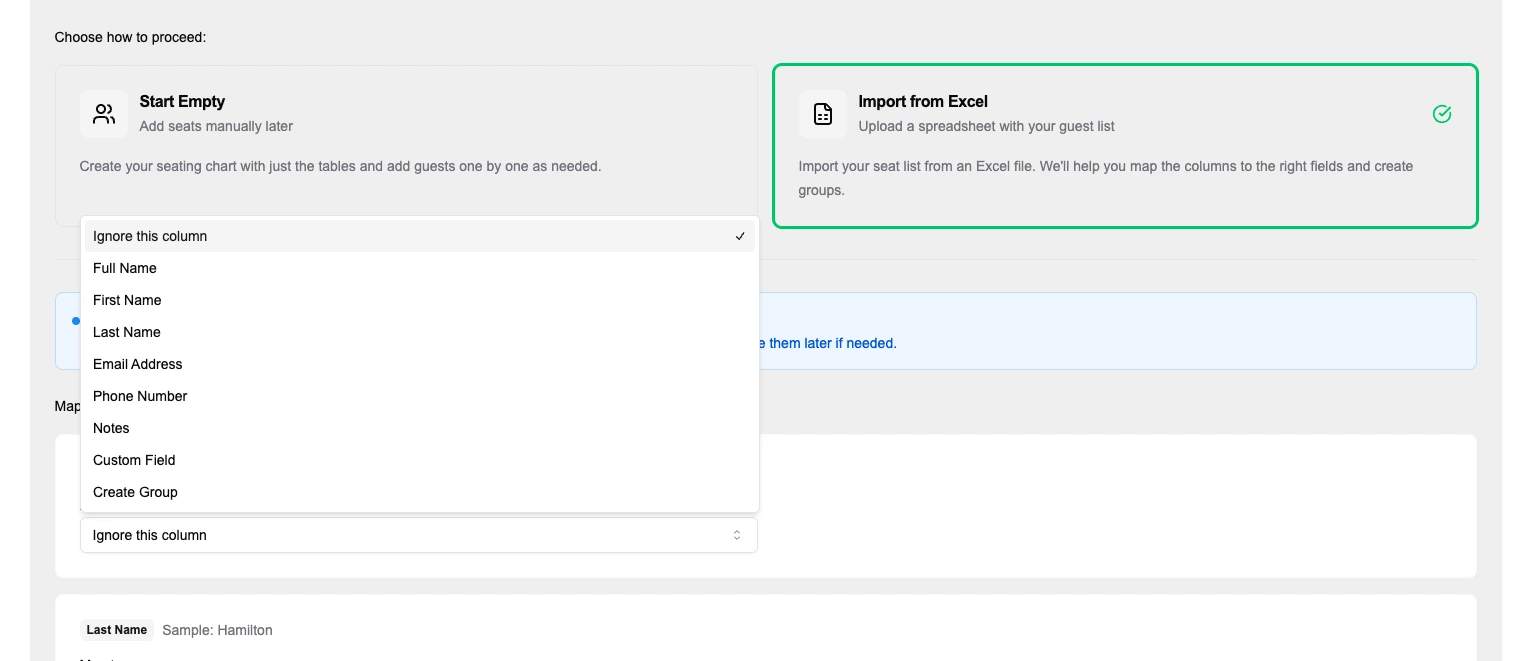
Mapping spreadsheet columns to seat fields during an Excel guest list import
Custom fields are where the messy half of a guest list goes. Meal choice. Dietary needs. Table preference. "Arriving after the ceremony." Shuttle group. Whatever you put there shows up on the seat, in your exports, and on the RSVP form your guests fill in.
Worth doing in this order: create the custom fields first, then import, and map straight into them. Adding them afterwards means a second pass through all 130 rows.
Collect RSVPs without chasing anyone
This is the half that most seating tools skip, and it is where the hours really go.
You share one public link or QR code. Each guest finds their own name, confirms or declines, answers whatever you asked them, and adds a plus one if you allowed it. Your chart updates itself, so there is no inbox to transcribe on a Sunday evening.
Around that you get email invitations carrying your own logo and wording, covering claim links, invitations, confirmations and reminders. The RSVP page itself can be branded and restyled, so guests land on something that looks like your event rather than like our product. And RSVP analytics tell you who has answered, who has not, and how the custom field answers break down, which is the fastest way to get a meal count to your caterer.
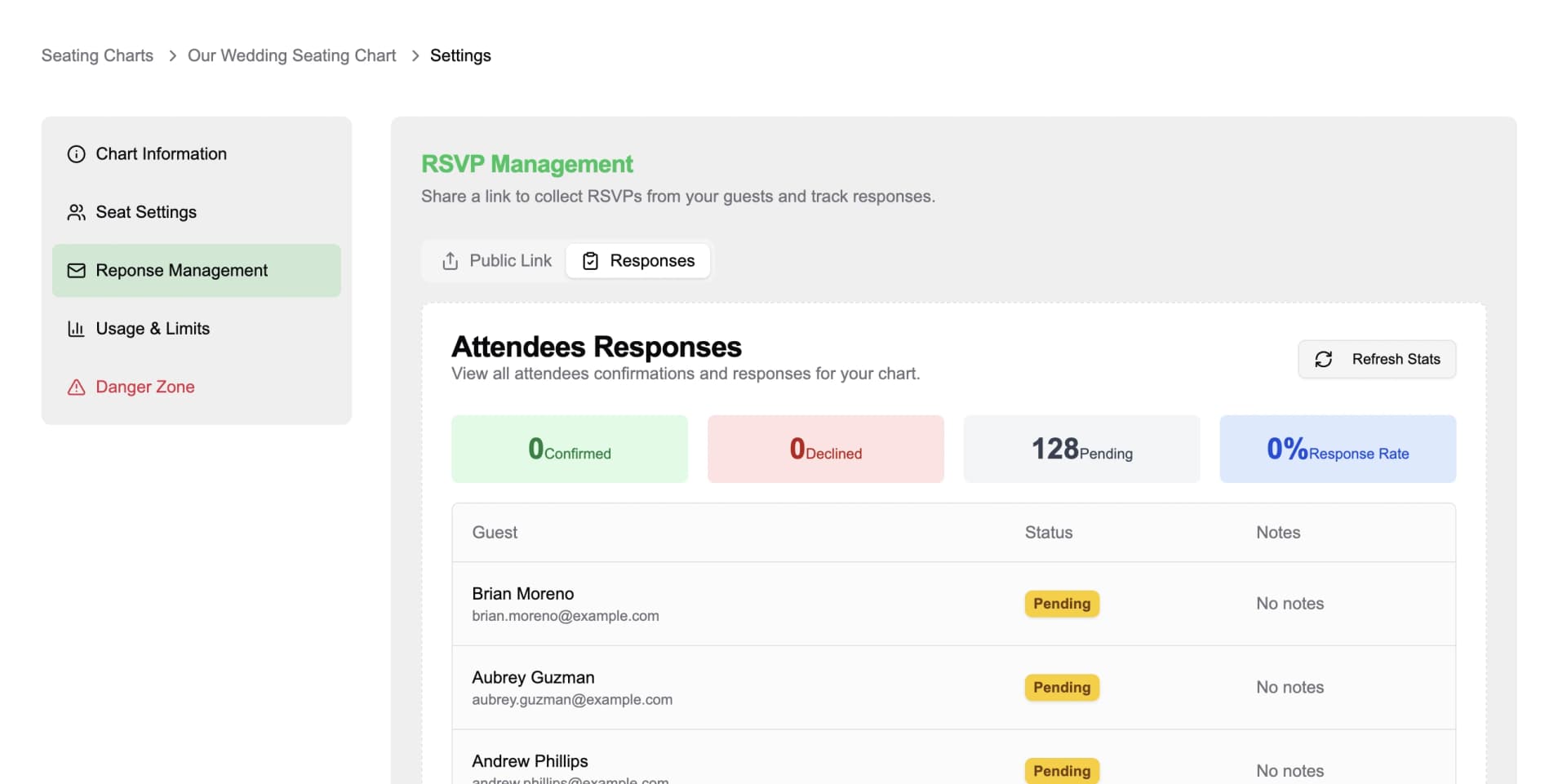
The SeatPlanning RSVP response dashboard showing confirmed, declined and pending guest counts
Guests never see the rest of your chart or anybody else's details. The public RSVP view is deliberately stripped of other people's personal data.
Export to PDF or Excel, then check guests in with a QR code
Three outputs, all live on day one.
The PDF is a styled, print ready seating plan for the venue and the escort card table, and there is more than one template to choose from. The Excel export is the flat guest list with every custom field on it, which is what your caterer and your day of coordinator actually want. And QR entry lets guests scan the code from their invitation email at the door.
QR check in is the piece people tend to underestimate. It replaces a printed list and a pen at the entrance, and at 8pm it tells you how many of your 130 confirmed guests genuinely walked in. We wrote about how that flow fits together in QR entry, RSVPs and email invitations.
Work on the same chart as your partner, planner or venue
Charts are shareable. Invite collaborators and everyone works on one live canvas, which is the end of emailing seating_final_v4_REAL.xlsx back and forth.
Collaborators count against the chart owner's plan rather than their own, so inviting your planner into a chart never eats into their limits.
The whole app runs in five languages: English, German, French, Spanish and Romanian.
How much does SeatPlanning cost?
You can start free and stay free. No card.
| Price | Best for | |
|---|---|---|
| Free | $0 | 1 chart, 40 seats, 5 tables. Enough for a small dinner, or to test the workflow |
| Event Pass | $29 once | One event. Every premium feature on one chart for 90 days, with no subscription |
| Premium | $39/mo | Unlimited charts, up to 1,000 seats and 80 tables each, 3 collaborators, 2,000 email invites a month |
| Professional | $89/mo | Planners running many events. Unlimited charts, seats and tables, 10 collaborators |
Annual billing on either subscription saves roughly 20%. Full details are on the pricing page.
The Event Pass is the one we would point most people at. If you are planning one wedding, you should not be renting software by the month for it. Pay $29 once, get the whole product for the 90 days around your event, then stop thinking about it. Most of our beta users chose this.
If you were in the beta, your locked in discount carries over on its own. There is nothing for you to do, and you can see it on your billing page.
What we are working on after launch
To be clear about the line between the two, none of this ships on September 1:
- AI floor plan import, so you can hand over the venue's PDF or a photo of it and have the tables built for you
- More RSVP page designs
- A better collaboration experience for planners working alongside their clients and venues
We work through these in the order beta users ask for them. The feedback widget inside the app comes straight to us.
Common questions about SeatPlanning
Is SeatPlanning free? Yes, there is a permanently free plan: one chart, 40 seats, 5 tables, and PDF export with a watermark. There is also a free builder you can use without an account at all.
Do I need a subscription for one wedding? No. The Event Pass costs $29 once and covers every premium feature on a single chart for 90 days.
Can I import my guest list from Excel?
Yes. Upload an .xlsx file, choose the worksheet, and map your columns across, including custom fields for meals, dietary needs and anything else you track.
Can guests RSVP through SeatPlanning? Yes. Share a link or a QR code, guests find their own name and answer, and the chart updates itself. You can also send branded invitation, confirmation and reminder emails from inside the app.
How do I know how many tables fit in my venue? Draw the room at its real wall to wall size, set your wall and table clearances, and the room reports how many more tables fit and how much usable floor is left. If you have not started a chart yet, the table capacity calculator answers the same question from just the dimensions and a headcount.
What happens to my beta account on September 1? Nothing changes except that the beta label disappears. Your charts, your guests and your early supporter discount all stay where they are.
Ready for the 1st?
Build the room now so you are not building it on the day. Create a free account, or open the free builder and sketch your venue in ten minutes without signing up for anything. If you want to see the whole workflow first, the app tour walks through it screen by screen.