Most "seating chart generators" are random shufflers. That is fine for a classroom. For a wedding it is useless, because the entire job of a seating chart is the relationships: the college friends who should sit together, the grandparents who need to be near the front, the two cousins who have not spoken since 2019.
So when we built automatic seating into SeatPlanning, we started from the questions a planner actually asks, not from an algorithm. It is called Seat guests automatically, it is live now, and it asks three things.
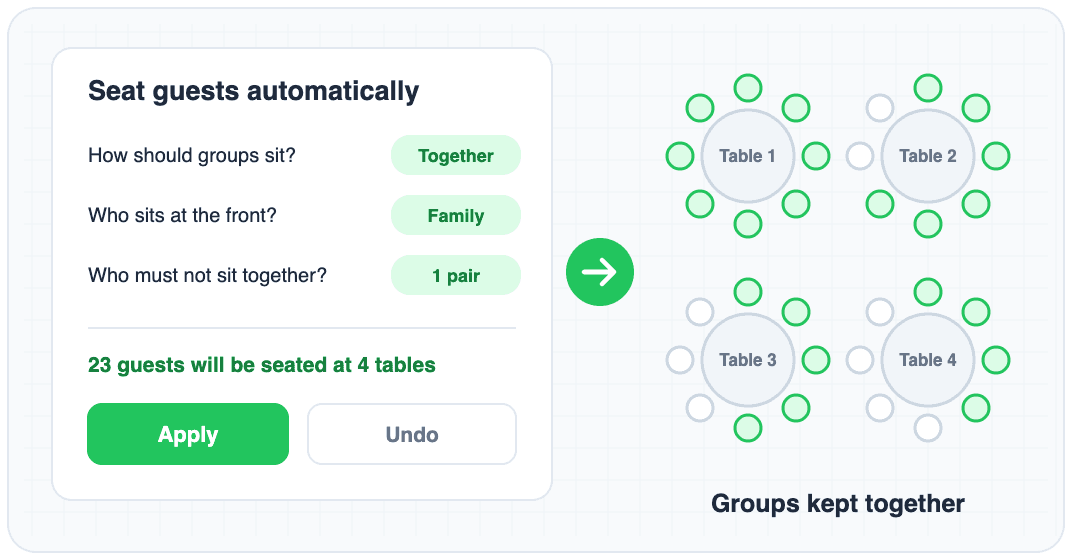 The Seat guests automatically window with three questions next to four tables filled with guests
Question 1: How should groups sit?
If your guests are in groups (family, friends, a company's team), you choose one of three:
- Together. People in the same group sit at the same table. A group too big for one table goes to tables next to each other, not scattered across the room.
- Mixed. Each group is spread out on purpose. This is the corporate dinner and networking option: one client per table, or one person from each department.
- Doesn't matter. Anyone can sit anywhere.
Groups are optional, but they are where the result starts to feel hand-made. Ten minutes of tagging "Bride's family", "Work friends" and "Uni" pays back immediately.
Question 2: Who sits at the front?
Tick the groups that belong up front, like immediate family or award winners. Then either let us Pick for me, which finds the stage or head table on your plan and uses the tables closest to it, or tick the front tables yourself. Front groups are seated first.
Question 3: Who must not sit together?
Add pairs of guests who should not share a table. You do not have to explain why. They will be placed at different tables.
Preview first, then apply (or undo)
Pressing Preview seating shows you who would sit where, with a headline like "23 guests will be seated at 4 tables". Nothing is saved yet.
The preview is also honest about what did not work. If 3 guests will not fit, it says so. If a group was too big for one table and was split across neighbouring tables, it says so. If a keep-apart pair had to share a table because there was physically no room, it tells you, rather than quietly breaking the rule.
When it looks right, press Apply seating. If you change your mind, Undo puts every guest back on the guest list and removes any tables it added, as long as they are still empty. And nothing is final either way: drag anyone to another seat afterwards.
More options, for when you care
Tucked under More options:
- How full tables should be: even, biggest tables first, or one table at a time.
- A cap per table, and a cap on how many people from one group share a table.
- Add tables if there aren't enough, in the shape and size you choose (round, rectangular, serpentine or half-round).
- Use tables before rows of chairs, if your plan mixes dinner tables with ceremony rows.
A practical way to use it
The generator only seats guests who do not have a seat yet. That makes the best workflow:
- Place the people you have strong feelings about by hand: the head table, the couple's parents, the CEO.
- Put everyone else into groups.
- Run Seat guests automatically for the rest, check the preview, apply.
- Fix the two or three placements you disagree with by dragging.
That turns a two-evening job into about twenty minutes, and you still made every decision that matters. If you want the thinking behind good table mixes, our post on the psychology of seating arrangements is a good companion.
What it costs
The questions and the full preview work on the free plan, so you can see exactly what you would get. Applying it needs an Event Pass ($29, one time, one event) or Premium if you run more than one event.
Try it
Open a chart with some unseated guests and click Seat guests automatically in the seats sidebar. No chart yet? Start one in the free seating chart maker, import your guest list from Excel, and let it seat everyone.