Choisir les informations à collecter sur vos invités
Décidez si le nom de famille, l'e-mail et le téléphone sont obligatoires pour chaque invité et affichés sur votre formulaire RSVP, et ajoutez vos propres questions comme le choix de repas ou les besoins alimentaires.
La troisième étape de l'assistant de configuration, « Sièges et gestion RSVP », demande aussi comment les invités répondront (voir Choisir un mode RSVP) et ce que vous voulez savoir sur chacun d'eux. Certaines informations sont intégrées, comme le nom d'un invité. Le reste dépend de vous.
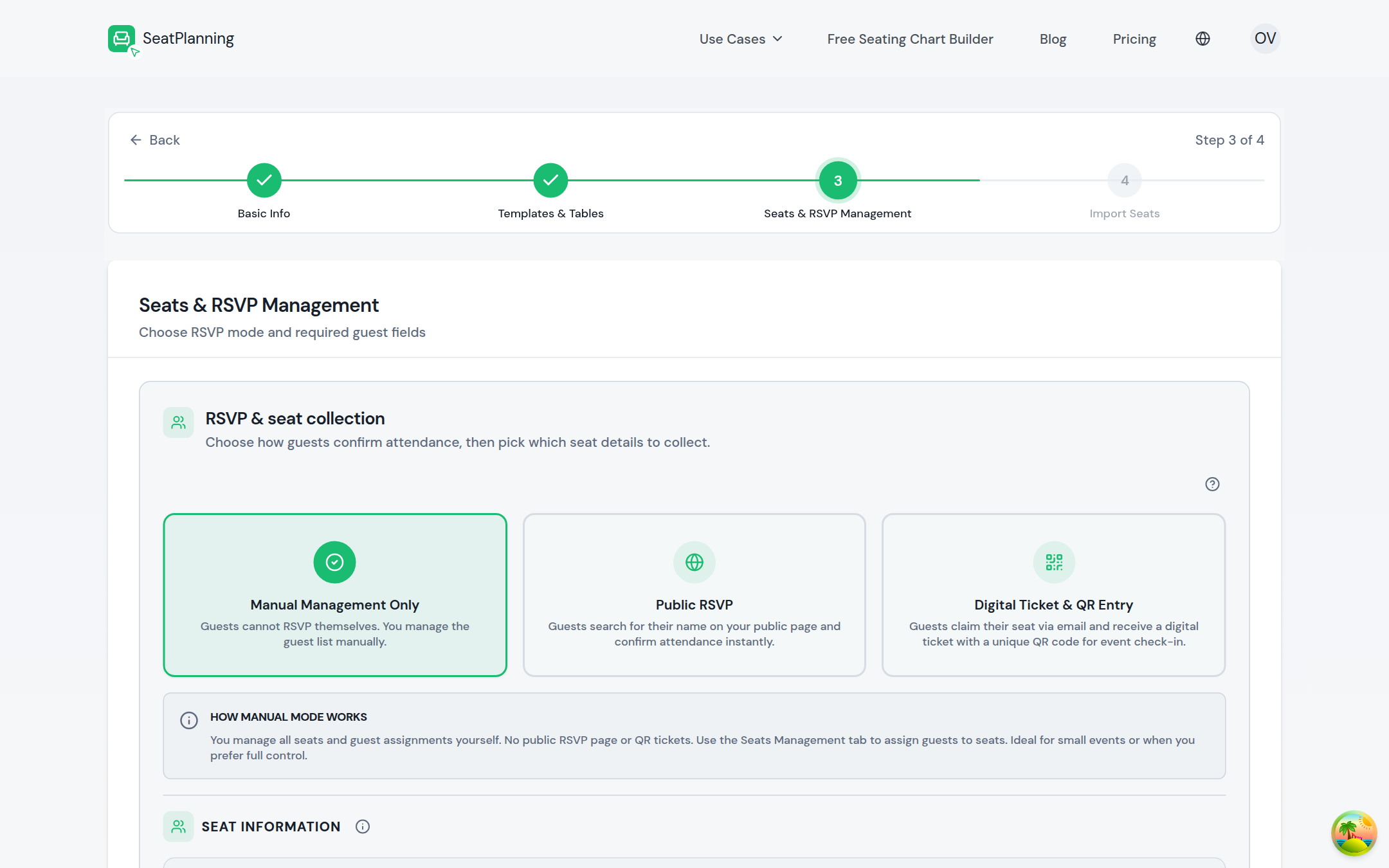
- 1Choisissez comment les invités confirment : manuel, public ou QR.
- 2Puis choisissez quelles informations invités collecter.
Rendez les champs intégrés obligatoires
Chaque invité a un prénom, toujours collecté. Au-delà, vous pouvez activer un interrupteur Obligatoire pour trois champs supplémentaires :
- Nom de famille
- Adresse e-mail
- Numéro de téléphone
Activez l'interrupteur d'un champ et il devra être rempli avant qu'un siège ou une réponse RSVP puisse être enregistré. Laissez-le désactivé et le champ reste disponible sur le formulaire de siège, mais facultatif : les invités ou vous pouvez le laisser vide.
Une fois que vous collectez des RSVP (RSVP en libre-service ou Billet numérique & entrée QR), chaque champ reçoit aussi un interrupteur Afficher dans le RSVP. Celui-ci détermine si les invités voient et remplissent ce champ sur le formulaire RSVP en libre-service, indépendamment du fait qu'il soit obligatoire.
Réfléchissez à ce dont vous avez réellement besoin. Si vous envoyez des invitations par e-mail, vous voudrez que l'e-mail soit obligatoire. Si vous utilisez le plan uniquement pour organiser la disposition des tables d'un anniversaire, vous pouvez laisser l'e-mail et le téléphone facultatifs.
Ajoutez vos propres questions
Sous les champs intégrés, ajoutez un champ personnalisé pour tout ce que vous voulez demander d'autre. Chacun comporte :
- Un libellé, la question que les invités ou vous verrez, comme « Choix de repas » ou « Besoins alimentaires ».
- Un type de champ : Saisie de texte pour des réponses ouvertes comme une demande de chanson, Oui/Non pour quelque chose comme « Besoin d'une chaise haute », ou Choix multiple quand vous voulez que les invités choisissent parmi une liste fixe, comme poulet, poisson ou végétarien.
- S'il est obligatoire.
Si vous collectez des RSVP ou utilisez le contrôle d'entrée par QR, vous disposez aussi d'un interrupteur Afficher dans le RSVP pour chaque champ, afin de garder une question interne ou de la présenter aux invités.
Vous pouvez ajouter plusieurs champs personnalisés, mais leur nombre dépend de votre forfait. Consultez la page des tarifs pour les détails actuels.
Un exemple rapide
Pour un mariage, vous pourriez rendre l'e-mail obligatoire pour pouvoir envoyer des invitations, laisser le téléphone facultatif, ajouter un champ à choix multiple pour le choix de repas avec poulet, poisson et végétarien comme options, et ajouter un champ texte pour les demandes de chansons, facultatif et affiché dans le formulaire RSVP.
Et ensuite
- Vue d'ensemble des paramètres du plan pour modifier ces champs plus tard.
- Choisir un mode RSVP pour voir comment ces champs apparaissent aux invités.
- Importer votre liste d'invités depuis Excel pour importer des réponses que vous avez déjà.