Choosing an RSVP mode
SeatPlanning has three ways to handle responses: manage everything yourself, collect replies through a public page, or issue digital tickets with QR check-in. Here is how to pick.
How you collect responses is up to you. SeatPlanning gives you three modes, and each one changes what your guests see and do. You can switch between them whenever you like, so it is fine to start simple and change your mind.
You choose the mode in your chart's RSVP settings, under RSVP Configuration. There you'll find the RSVP Type selector with three cards.
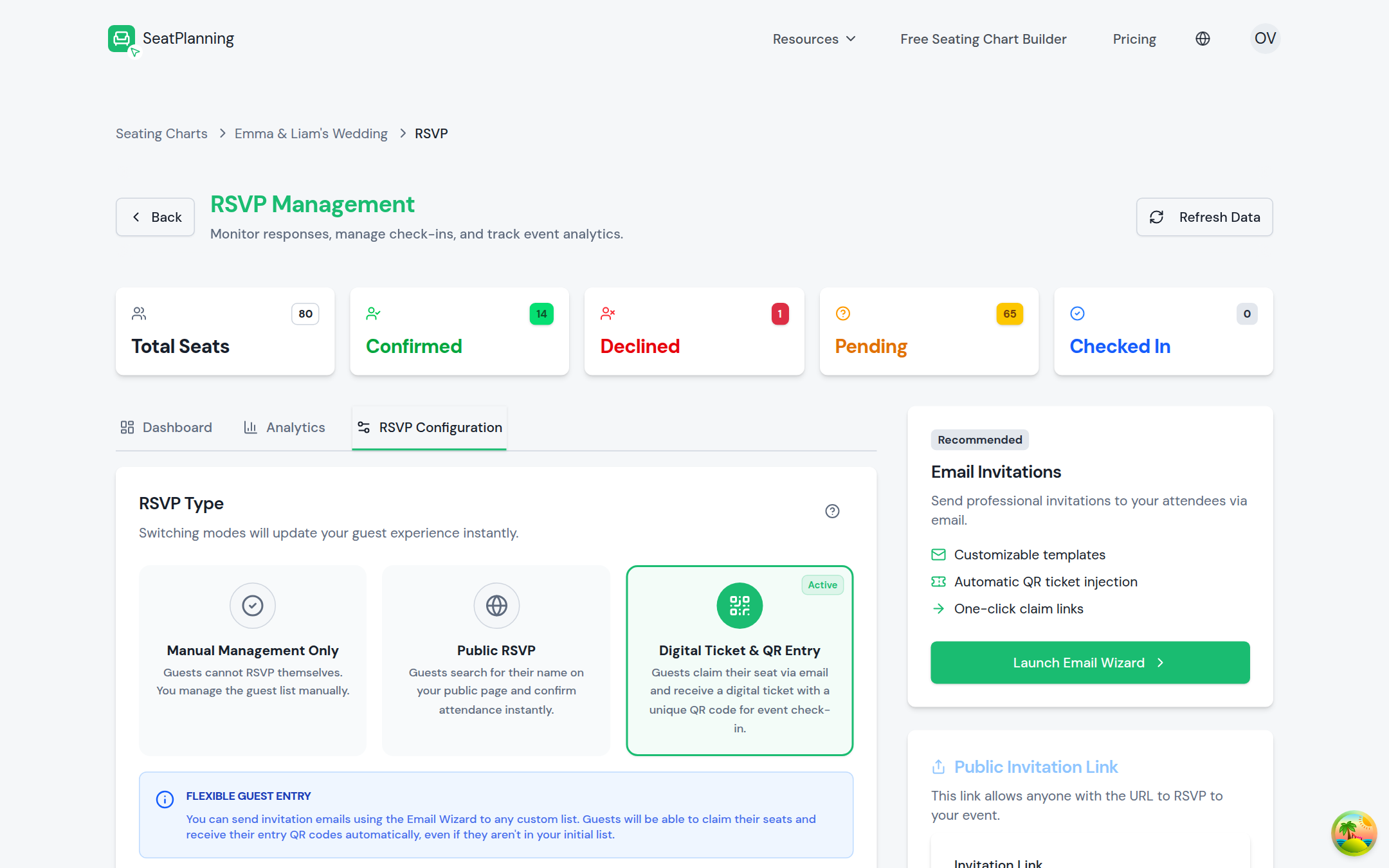
- 1See totals at a glance: confirmed, declined, and still pending.
- 2Open RSVP Configuration to choose your mode: Manual Management Only, Self-Serve RSVP, or Digital Ticket & QR Entry.
- 3Launch the email wizard to invite guests from your roster.
Manual Management Only
You manage everything yourself. There is no public page and no invitation emails. You add guests, mark who is coming, and arrange seats on your own.
Use this when you already know who is attending, or you are collecting replies some other way and just want to build the plan.
Self-Serve RSVP
Guests confirm or decline themselves instead of you doing it for them. When you invite by email, each guest gets their own private confirmation link, with no searching, no roster, and no one sees anyone else's response. You can ask for extra details on the form, such as a meal choice, and you can require guests to verify their email so responses are genuine.
If you also want a way to reach guests outside email, such as a group chat or your wedding website, you can generate a shareable RSVP link from RSVP settings. Guests who arrive that way confirm by typing their own name, still only ever seeing their own information.
Replies land on your guest list as they come in, so you always see where things stand.
Use this when you want guests to respond themselves, mainly through the private link in their invitation email.
Digital Ticket & QR Entry
Guests claim their seat by email and receive a digital ticket with a QR code. On the day, you scan each ticket at the door and watch your entry count update live.
Use this when you need to control entry or track attendance as guests arrive, such as a ticketed event or a gala.
Switching modes
You can change modes at any time. Because the switch changes what guests see straight away, SeatPlanning asks you to confirm first. Moving to Self-Serve RSVP does not generate a shareable link on its own. You can create one afterward from RSVP settings if you want it.
Where to go next
- Create your first seating chart if you have not built one yet.
- Import your guest list from Excel so your guests are ready to respond.