Import your guest list from Excel
Bring your whole guest list in from a spreadsheet instead of typing names one by one. Map your columns, handle duplicates, and you are ready to seat everyone.
If your guest list already lives in a spreadsheet, you do not need to retype it. Import brings everyone in at once and matches your columns to the right fields.
You can start an import from the guest list during setup, or later from the seats sidebar in the editor.
Before you start
A little prep makes the import cleaner:
- Put your guests in the first worksheet, or be ready to choose the right worksheet.
- Keep the column headers in the first row (for example: First name, Last name, Email).
- Give each detail its own column where you can.
Import your list
- Open the Import Seats window and add your spreadsheet, either by dragging the file in or browsing for it. Click Upload & Preview.
- On the mapping screen, match each column in your file to a guest field in SeatPlanning. If your file has more than one worksheet, switch to the right one from the worksheet picker here. You can split a single full-name column into first and last names, and map any custom questions you collect.
- Under On duplicate guests (same first and last name), choose Overwrite existing seat to update guests you already have, or Import as duplicate to add the rows as new entries. SeatPlanning matches duplicates by first and last name.
- Click Import Guests and wait for it to finish. You will see a summary of how many guests were added.
After the import
Your imported guests show up in your guest list, ready to seat.
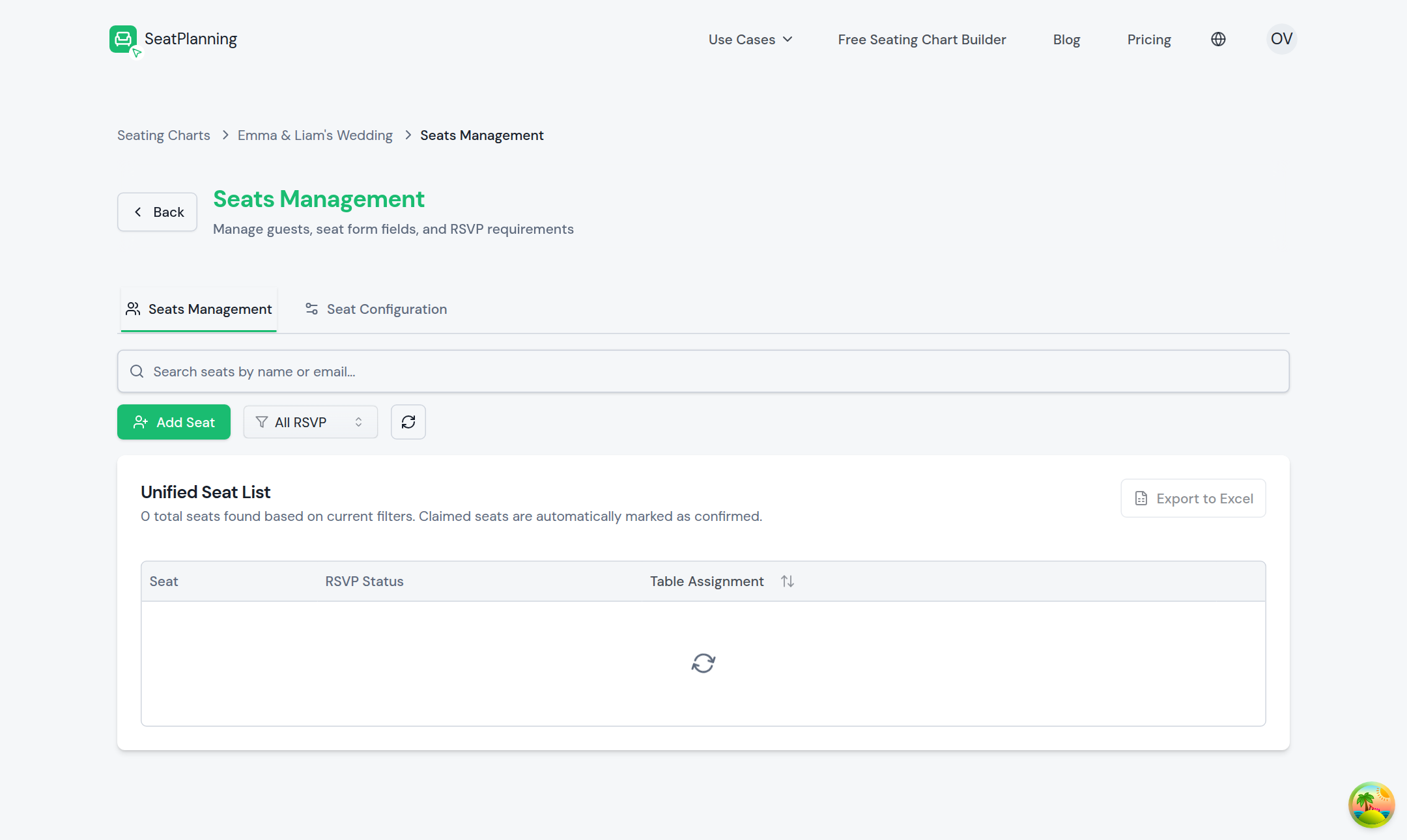
- 1Add another guest by hand at any time.
- 2Search and filter your whole list by name or RSVP status.
- 3Export the list back to Excel whenever you need it.
Your guests come in as unassigned, so you are in control of where everyone sits. From here you can:
- Drag guests into seats yourself.
- Group families and friends together so they stay near each other.
- Let SeatPlanning place unassigned guests across your tables, then adjust.
If your list is larger than your current plan allows, the import lets you know how many guests it could add so there are no surprises.
Where to go next
- Choose an RSVP mode to start collecting responses from your imported guests.